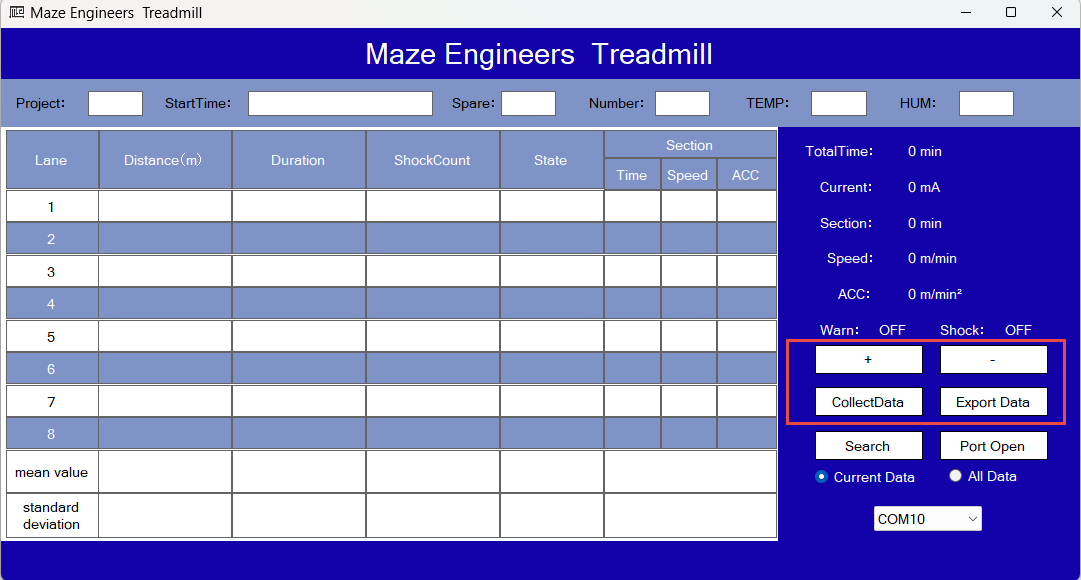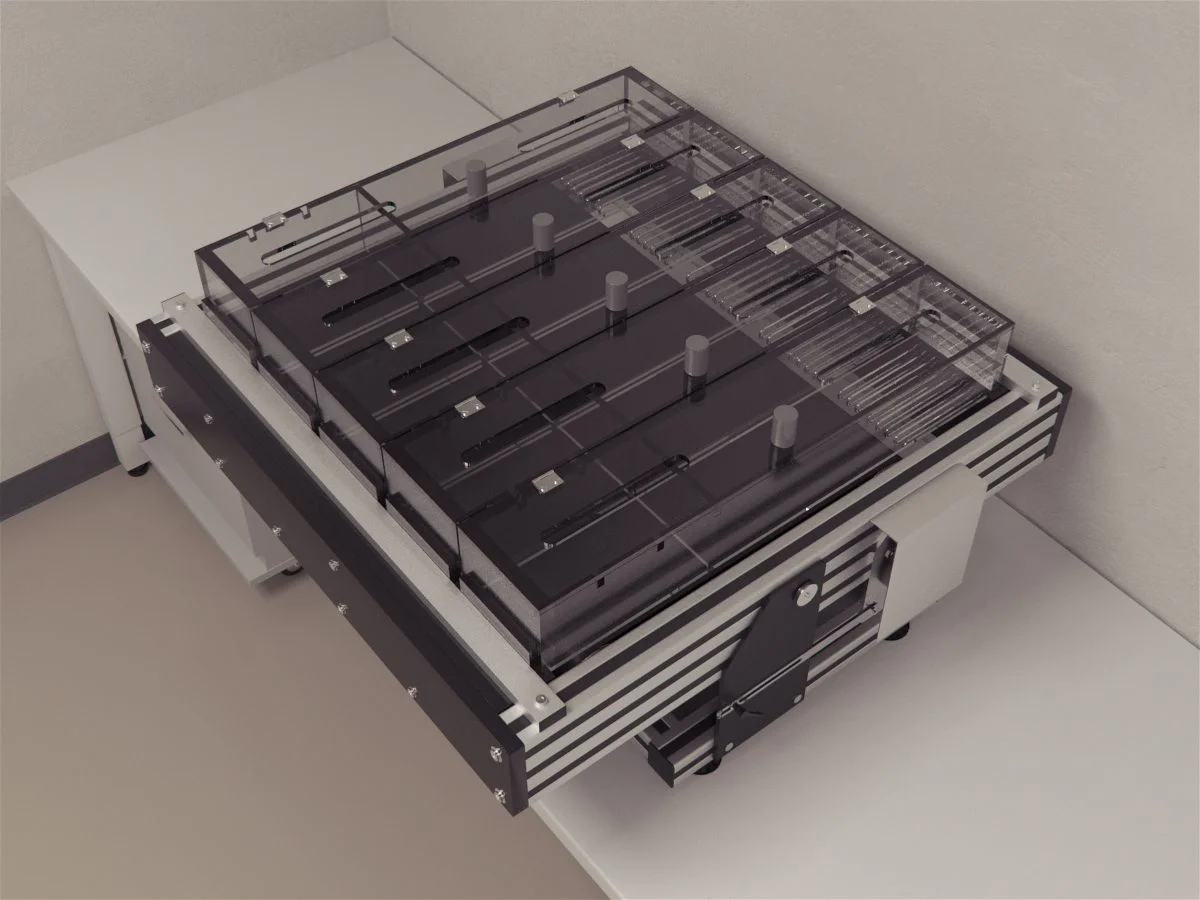
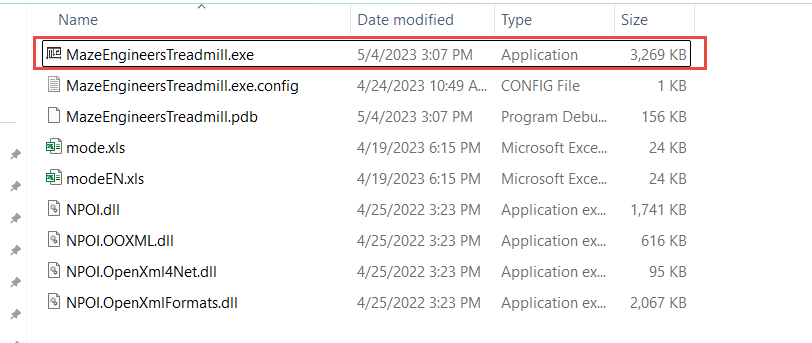
1. Install and Run Application
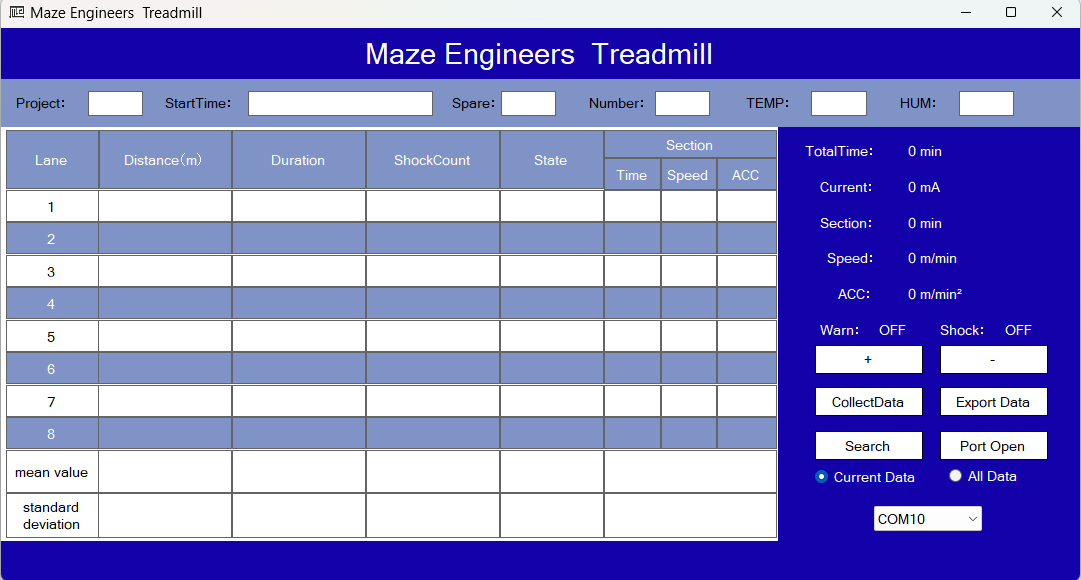
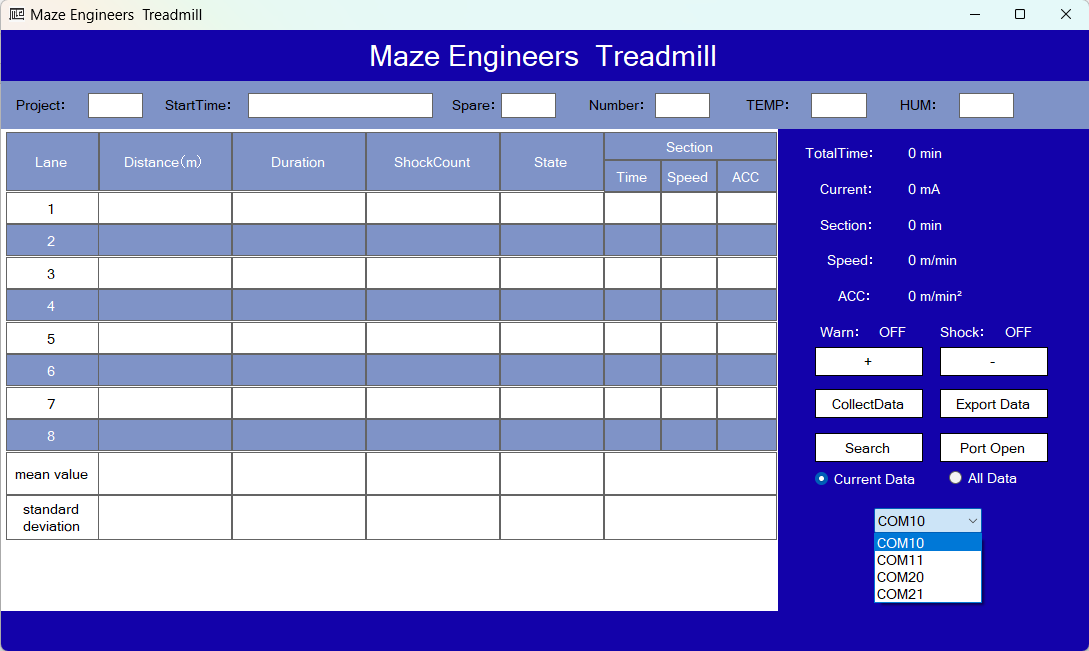
The main window appears as below:
Note: Windows .NET Framework 4.5 is required. The current PC/Laptop should have Windows .NET 4.5 installed.
2. Treadmill Connection to Computer
When the Treadmill is connected to your computer with the USB cable (USB to RS232 cable included in the shipment) and is powered on, a port is shown in the Device Manager:
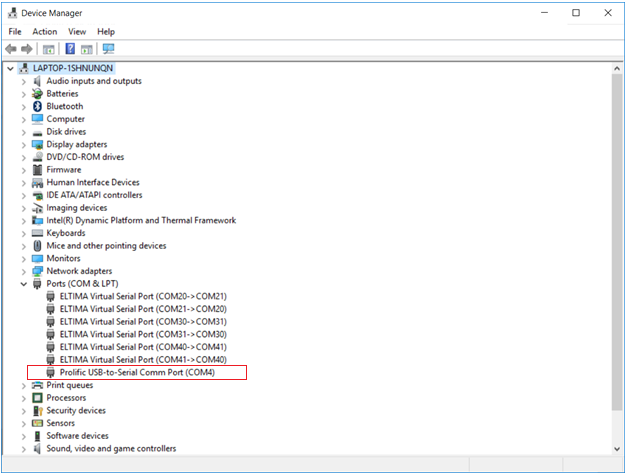
If the device is not shown in the Ports section, it will appear in a different section. This is because the computer could not find the driver for the hardware device. In this case, you will need to install the driver (small disc in the box of UNITEK) which is included in shipment. A digital version of the driver is also included on USB so you would not need a CD reader.
Once your computer recognizes the Treadmill hardware, it is ready to establish the connection. Click on the COM port dropdown—a list of available COM ports will appear as shown below. Choose the correct COM port and then click Port Open.
3. Browse and Export Data
Once the connection is established and when the treadmill LCD screen is in the open state as below:
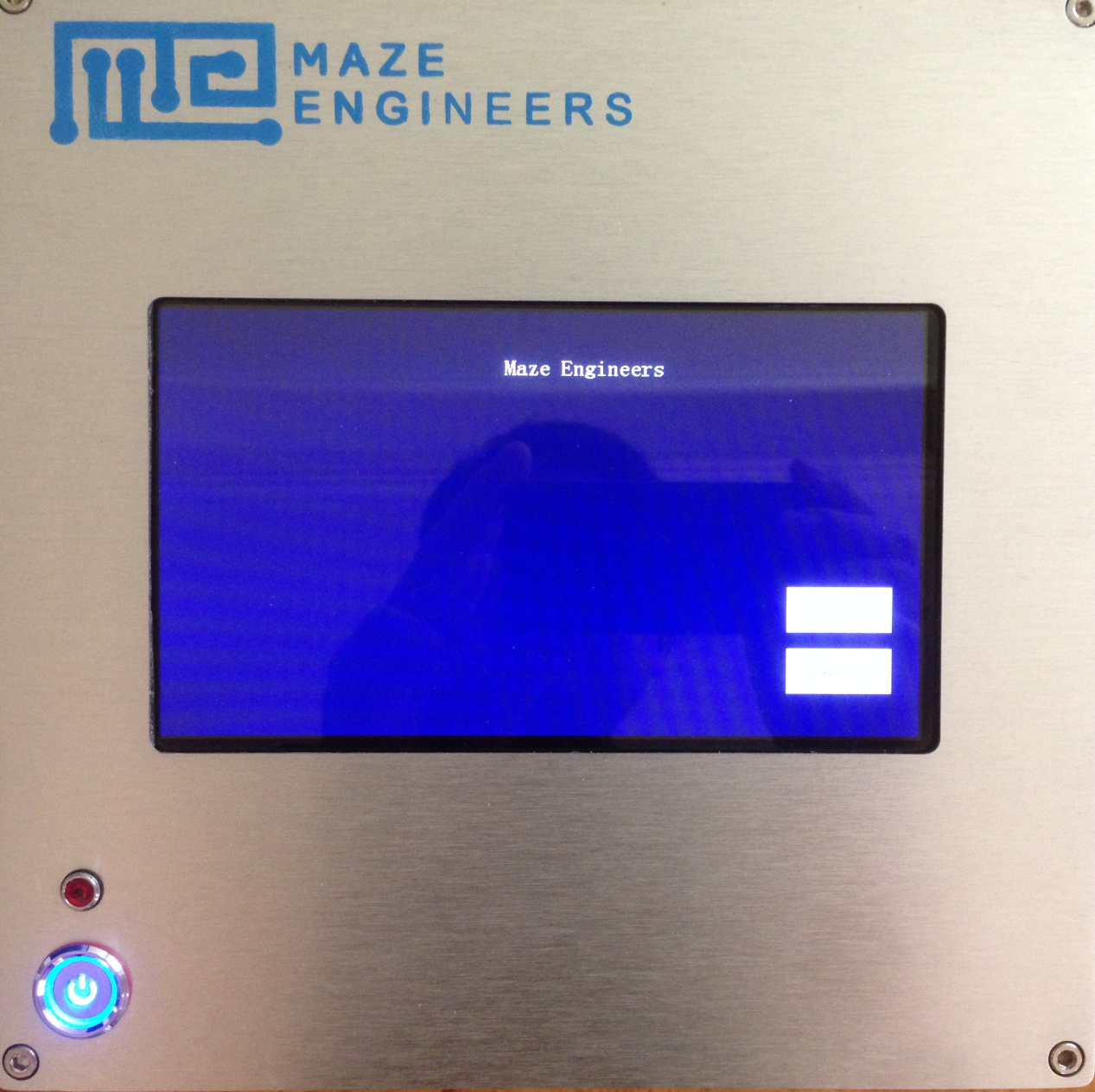
Click Collect Data and wait for a few seconds. The experiment results stored on the Treadmill will be uploaded to the software on PC.
Note: The "Collect Data" will not work when you navigate the screen any further. You can use + and - buttons to browse the data. To save a specific result to your computer, use Export Data to save the result in an Excel file.